Some links in my articles are affiliate links. I may earn a commission when you buy through them.
If your running gloves will swipe a screen but miss the tiny control you need, check the fingertip fit before buying another pair. If the problem appears only in rain or through a phone pouch, separate those parts of the setup first. You can usually narrow down the awkward layer indoors with the phone and kit you already own.
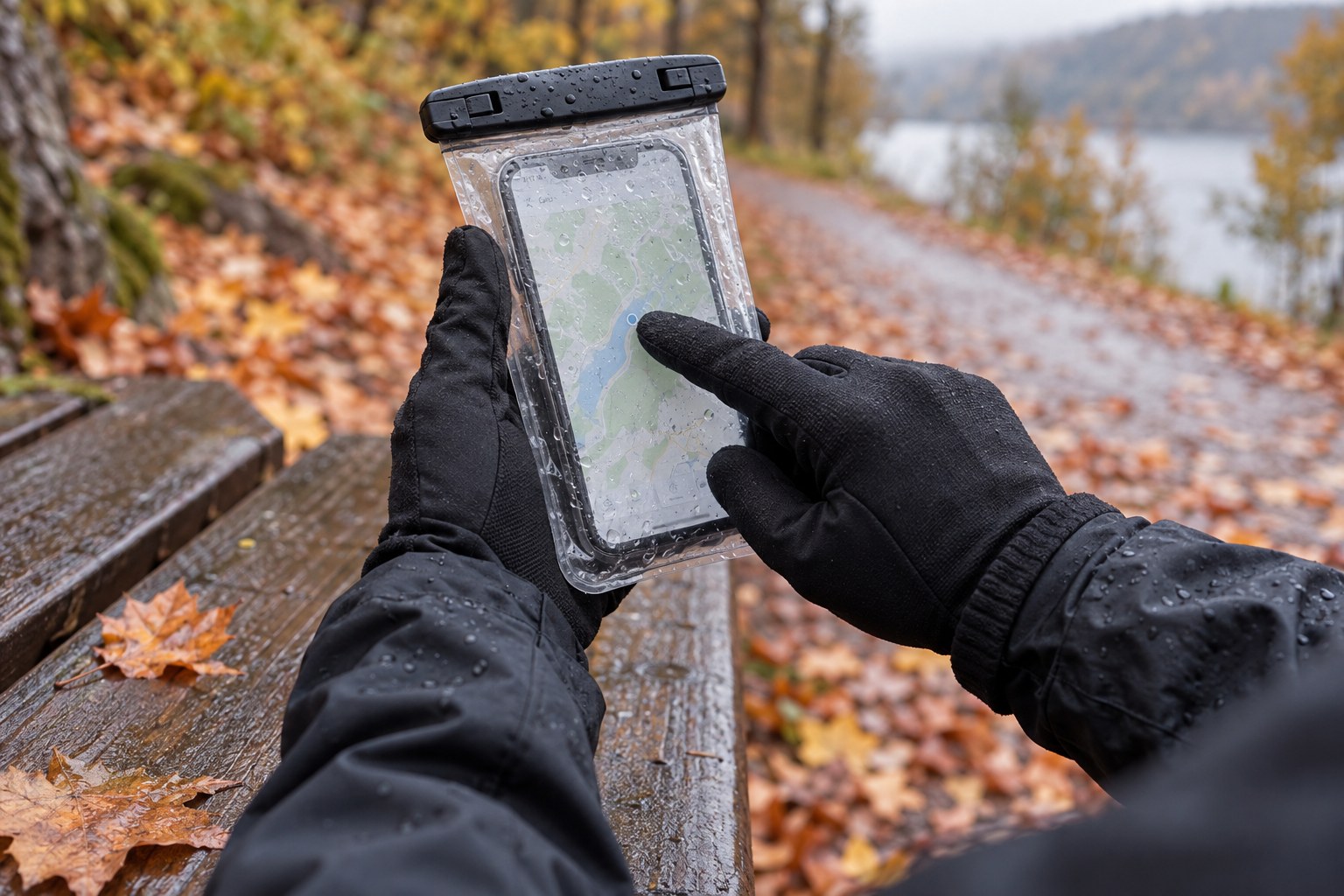
My Unigear touchscreen gloves let me pause a watch or check a phone without exposing my fingers on a cold morning run. Try your phone, screen protector and waterproof pouch together before relying on them outside.
Work indoors with a clean, dry screen and dry hands. Choose one small control you regularly need, such as a map button. Use the same app and control for each comparison, with the phone already unlocked, so you are checking touch response rather than the unlocking method.
Bare finger, phone outside the pouch. Establish that the screen and app respond normally.
Gloved finger, phone outside the pouch. If this fails, focus on the glove’s conductive area and fit.
Bare finger, phone inside the closed pouch. If this fails while the first check worked, investigate the pouch and how the window sits over the screen.
Gloved finger, phone inside the closed pouch. If each part worked separately but this combination struggles, assess the whole setup before replacing either item.
A pouch can still be useful for carrying a phone you rarely operate, even if it is awkward for frequent navigation. Our waterproof phone pouch guide covers fit and carrying positions.
Put your fingertip where the conductive patch is
Pull each finger into place without stretching the glove tight. Spare fabric at the tip can fold between your fingertip and the contact area. A glove that is too short can pull across the fingers when you grip the phone.
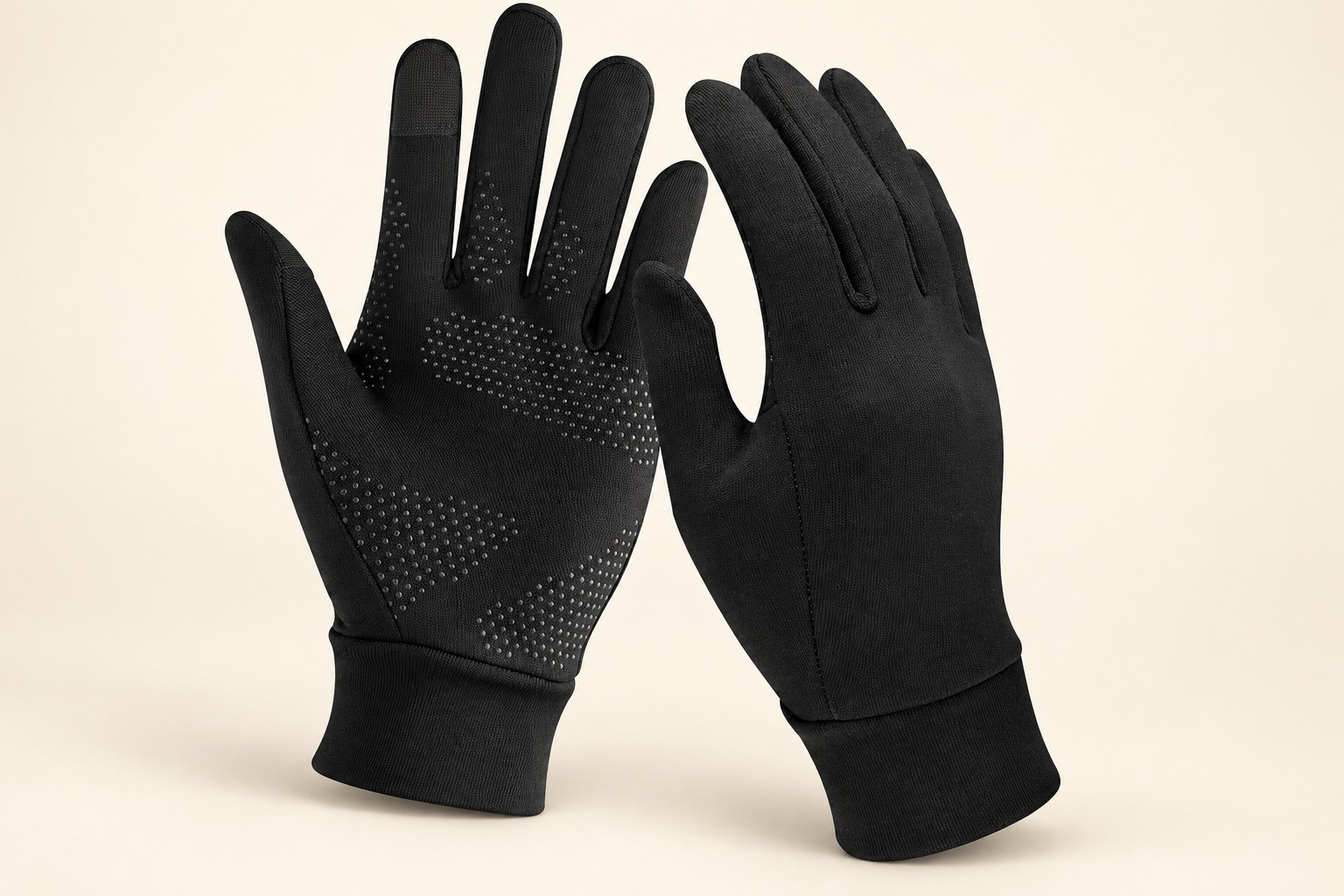
Unigear’s current listing places conductive fabric on the thumb and forefinger. Try both digits: the contact position and size of the tap will differ. Use a deliberate touch, then lift away; pushing harder is not a reliable cure for poor contact or a badly positioned finger.
The close stretch fit of my Unigear touchscreen gloves let my fingers move freely while I used the phone and handled running kit. When choosing a size, repeat the control check while holding the phone as you would outside, rather than leaving it flat on a table.
Follow the care label if the pair needs cleaning. Do not cut, wet or coat the fingertips to make them work. If the conductive area is worn, compare another known-working pair before deciding that the phone is at fault.
Treat rain as another variable
Dry the outside of the pouch or screen before repeating a control check. Apple’s screen troubleshooting guidance specifically says the screen should be clean and free of debris or water, and identifies cases and screen protectors as possible variables.
You do not need to peel off a fitted protector on the trail. If touch response is unreliable with a dry bare finger too, follow the device maker’s troubleshooting at home. Buying a different glove will not diagnose a fault that also occurs without gloves.
A clear pouch adds another surface to the combination. Check that its window lies sensibly over the display and that the phone’s everyday case does not hold it away from the screen. Keep the closure sealed while outside; if you need to open it, find a dry place and dry your hands first.
Check unlocking and buttons separately
A successful tap on an unlocked screen does not establish that fingerprint or face unlocking will work through the same setup. Check your normal unlocking method at home, including what happens after the phone locks itself. Keep your usual security protections enabled.
Try the side buttons, camera access and the control you use to pause a recording or activity. Some tasks may be easier through a watch or a physical button, where your device supports that function. Confirm the action on your own model before relying on it during a run.
For navigation, load the route before leaving and know how to reopen it. Stop somewhere suitable to deal with a fiddly screen. A glove that manages a broad swipe may still be frustrating for a small map control.
Buy for the part that needs changing
Ordinary gloves fail, bare fingers work: a conductive pair may solve the access problem. Unigear touchscreen gloves are the light, close-fitting option I have experience with; check the current size and the controls you need.
Gloves work outside the pouch: assess the window fit and carrying arrangement first. Another touchscreen glove may leave you with the same combination.
You need more weather coverage between checks: consider a convertible glove and mitten-shell system that uncovers the conductive fingers when needed. Check that you can deploy and stow it with both hands dressed.
The dry screen fails with bare fingers: follow the phone maker’s support route before shopping for handwear.
The best running gloves guide compares useful light warmth and screen-access options. Our phone-carrying guide helps if the bigger problem is getting the phone out of an overfilled pocket in the first place.